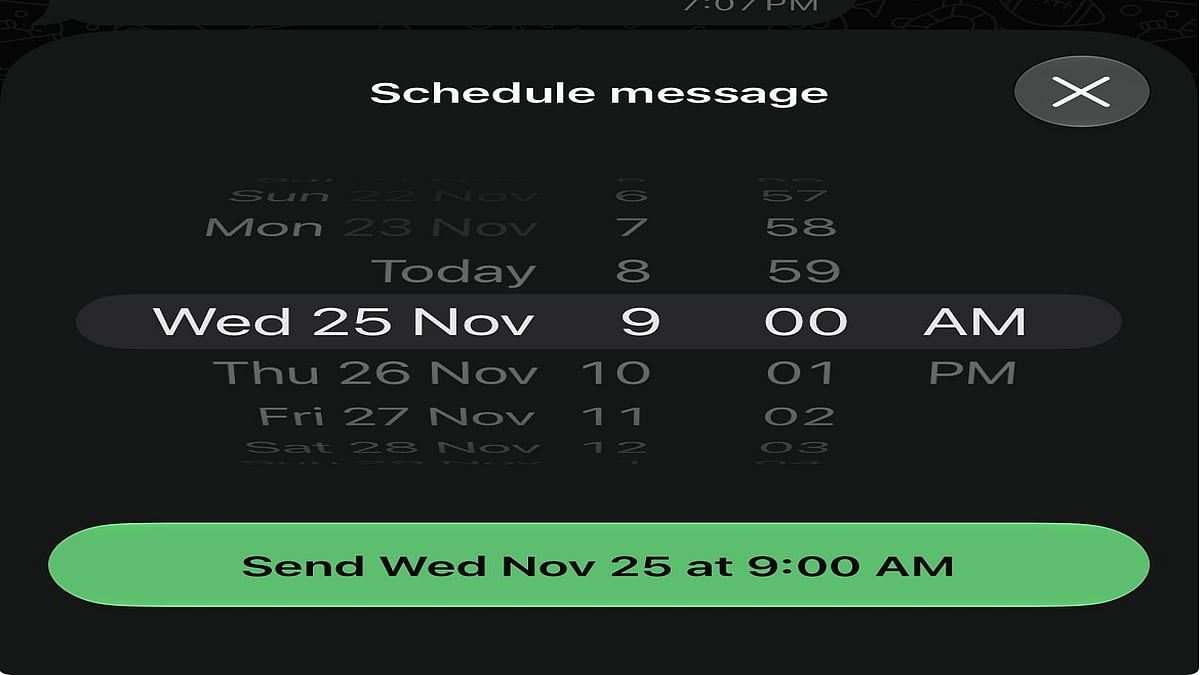
WhatsApp is gradually rolling out two long-awaited features: scheduled messages on iOS and Android, and view-once text messages. Both are reaching users in phases, so many people in India may not see them yet.
Scheduled messages: choose when a message is delivered
The feature lets users pick the date and time a message is delivered. It supports text, photos and videos in both individual and group chats. Delivery can be set anywhere from 10 minutes to two weeks ahead, and the sender's phone does not need to be online at the scheduled time. According to WABetaInfo, only one message can be scheduled at a time, and a dedicated section in the chat info screen lets users view and delete scheduled messages before they go out.
The rollout appears broader on iPhone than on Android. WABetaInfo spotted the feature in beta builds, including iOS beta 26.42.10.19, and says it is rolling out to more testers over the coming weeks.
WhatsApp itself hints at the rollout
WhatsApp reposted a user's "Schedule WhatsApp Messages" post on X, saying "it's working" with candle emojis, which suggests an official rollout. For people who send birthday and festive wishes at midnight, or professionals who rely on third-party scheduling tools, the feature removes the need to stay awake or use outside apps.
How to schedule a message
1. Open the chat where you want to send the message.
2. Type a message, or add a photo or video via the media picker.
3. Press and hold the send button (the aeroplane icon).
4. If you're eligible, a "schedule message" option appears.
5. Choose the date and time from the bottom sheet.
6. Tap the button showing the delivery date and time to confirm.
After scheduling, the app shows a confirmation that only the sender can see.
View-once text messages
WhatsApp is also bringing its view-once option, until now limited to photos, videos and voice notes, to text. A text sent this way can't be forwarded, copied or screenshotted, because it opens in a separate window from the chat screen. The feature began reaching Android beta testers on through beta version 2.26.45.6 and to iPhone beta testers as well.
View-once is different from disappearing messages. A disappearing message deletes itself after a set time whether or not it's read, while a view-once message vanishes after it has been opened once.
How to send a view-once text
1. Open the chat where you want to send the message.
2. Type your message and long-press the send button.
3. Choose the "View once" option to send.
The feature can be useful for sharing sensitive information with a short viewing window.
Not available to everyone yet
Both features are in phased rollouts, mostly to beta testers so far. They may not show up for all iPhone and Android users yet.