
OpenAI and Anthropic have been making headlines for the past few weeks. Several users have been migrating to Claude after its bold move of denying the US government from accessing private user data. The thing Claude point blank refused for, OpenAI readily agreed to do so. This catapulted in many users switching to Claude AI in support of Anthropic's daring decision.
To make this transition easier, Anthropic has quietly embedded an import memory feature inside Claude that allows users to extract a structured snapshot of everything a rival AI platform knows about them and load it into Claude in one seamless step. Millions of users who built years of conversational history inside ChatGPT now have a fast, structured way to carry that context directly into Claude - and the process requires nothing more than a copy, a paste, and a few clicks.
How the import process works
The process is built around a prompt-based extraction method. Claude generates a ready-made prompt that users then run inside their existing AI tool. That prompt is engineered specifically to surface everything the old platform has stored about the user in a clean, structured format. The resulting output is then imported directly into Claude's memory system.
Here is a complete walkthrough of the five steps:
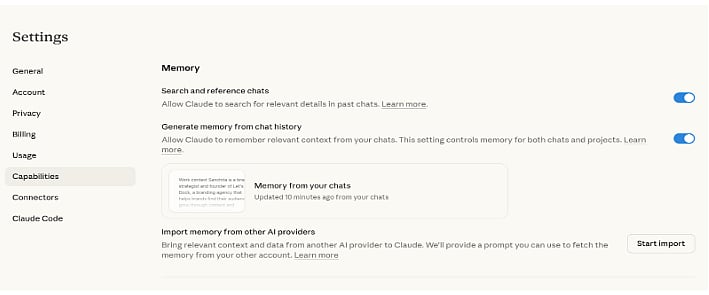
1. Open Claude Settings and navigate to Capabilities
Inside Claude, open the Settings menu (from the profile logo) and select the Capabilities tab. Scroll down until you see the option labeled Import Memory from Other AI Providers. Click Start Import to begin. Claude will immediately prepare to receive your context.
2. Copy the generated prompt exactly as written
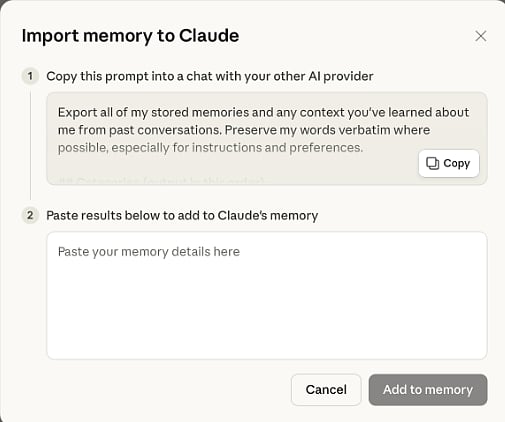
Claude will produce a ready-to-use prompt. Copy it word for word - the language is carefully constructed to instruct your old AI to output a structured memory snapshot. Do not paraphrase or modify it in any way.
3. Paste the prompt into ChatGPT, Gemini, or your current AI tool
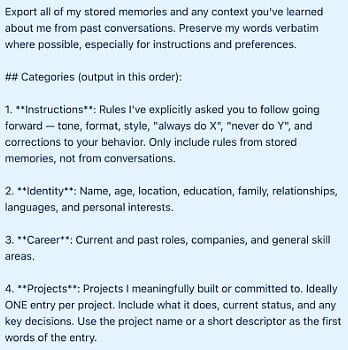
Open whatever AI platform you have been using and paste the prompt directly into the chat. Run it. The AI will respond with a detailed structured summary of everything it has learned about you - your projects, preferences, communication style, professional context, recurring topics, and more. Many users report the level of detail as unexpectedly revealing.
4. Copy only the code block from the response
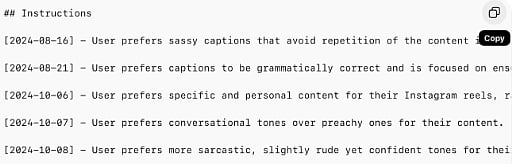
The response from your old AI will include both plain text and a structured code block. Copy only the code block - the formatted, structured section. Skip the surrounding prose. Claude's import tool is built to receive this specific format.
5. Paste the block into Claude and confirm the import
Return to Claude, paste the code block into the import box, and click Add to Memory. The transfer is complete. Claude will now have access to the full context that was previously stored in your old AI tool.
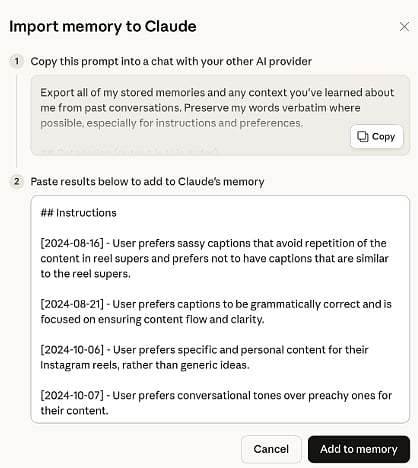
All of the data gets transferred
The scope of information that can move across platforms is broader than most users expect. The structured snapshot typically includes personal and professional context, writing and communication preferences, ongoing projects, workflow habits, and even conversational personality traits that users have demonstrated over time. In some cases, the export has surfaced information users had forgotten they ever disclosed - including astrological details entered during early onboarding flows.
The import method works across all major AI platforms. Users switching from ChatGPT, Google Gemini, Microsoft Copilot, or any other conversational AI tool can use the same process.
