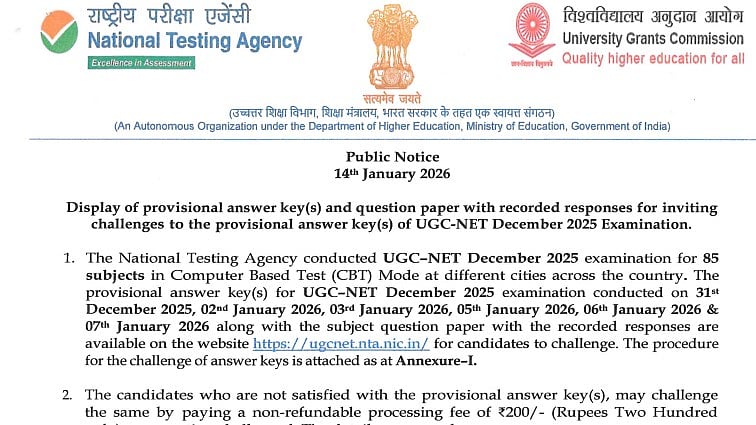
UGC NET December Exam Answer Key 2025: UGC NET Answer Key 2025 has been made available by the National Testing Agency, or NTA. Candidates who took the UGC NET December 2025 exam can use the official UGC NET website at ugcnet.nta.nic.in to view and get the provisional key.
On the official website, the objection window has also started. January 17, 2026 is the deadline for objecting to the answer key.
Direct link for official announcement
UGC NET December Exam Answer Key 2025: Important dates
UGC NET December 2025 exam dates: December 31, 2025 to January 7, 2026
UGC NET Answer Key 2025 released: January 2026
Objection window opens: January 2026
Last date to raise objections: January 17, 2026
Last date to pay objection processing fee: January 17, 2026
Exam shift timings:
- First shift: 9:00 am to 12:00 noon
- Second shift: 3:00 pm to 6:00 pm
UGC NET December Exam Answer Key 2025: Steps to download answer key
The official website is the only place to acquire the UGC NET 2025 answer key. The provisional answer key for the December session can be downloaded by candidates who took the exam via the procedures listed below:
Step 1: Go to ugcnet.nta.nic.in, the official website.
Step 2: Click the "UGC NET Answer Key 2025" link on the homepage.
Step 3: The screen will show a login page.
Step 4: Enter the security code, application number, and birthdate.
Step 5: Send in the information
Step 6: The answer key for the UGC NET Dec session will show up on the screen.
Step 7: Save it for later use after downloading it.
Direct link to download answer key
UGC NET December Exam Answer Key 2025: Fees for objection
Objection processing fee: ₹200 per question
Fee is non-refundable
Payment modes available:
Credit Card
Debit Card
Net Banking
UPI
UGC NET December Exam Answer Key 2025: How to challenge?
Candidates can review the details below:
Step 1: Go to the UGC NET 2025 official website.
Step 2: Click the link to see the answer key.
Step 3: Click on any of the following links: Using the application number and password or the application number and birthdate
Step 4: Enter the security pin (as seen on the screen), application number, and password/date of birth.
Step 5: Select "Sign In."
Step 6: Click the link to the Challenge Answer Key.
Step 7: Choose the appropriate response option ID for the question ID that requires the challenge.
Step 8: Press the "Save Your Claims" button.
Step 9: To bolster your claim, upload all of the supporting documentation in a single PDF file.
Step 10: The "Save Your Claims & Pay Fee" button should be clicked.
Direct link to