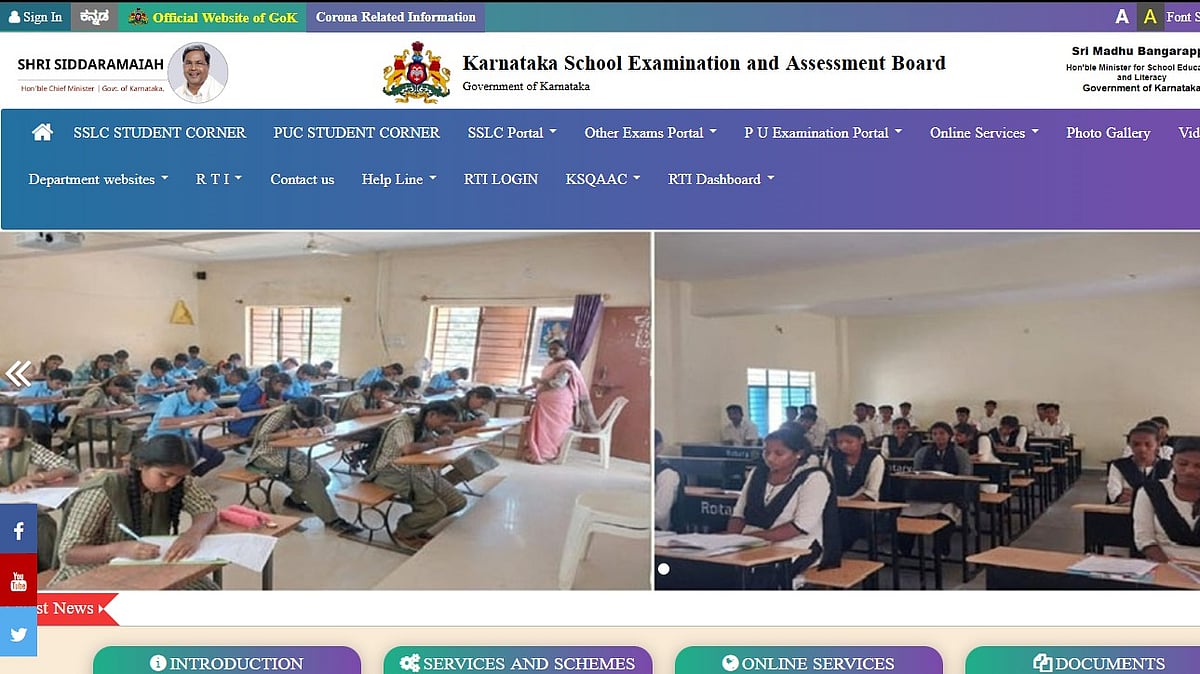
Karnataka 2nd PUC Result 2026: The Karnataka School Examination and Assessment Board (KSEAB) will declare the results for Class 12 PUC (Pre-University Course) tomorrow, i.e., April 9, at 3 PM as per Times of India Report. The board had initially planned to announce the results on April 7.
Once announced, students can access their class 12th result on the KSEAB official websites kseab.karnataka.gov.in and karresults.nic.in. Candidates should keep their login details ready to verify their mark sheets once the results are declared.
The PUC exams for 2026 were held between February 28 and March 17. This year, 710,363 students from 5,174 PU colleges applied for the exams. There are 13,022 private candidates, 50,540 repeaters, and 6,46,801 fresh candidates.
Karnataka 2nd PUC Result 2026: Website for checking the result
Karnataka 2nd PUC Result 2026: Steps to check the result
Candidates can obtain the Karnataka 2nd PUC results 2026 by following the instructions provided below.
Step 1: Go to the official websites karresults.nic.in or kseab.karnataka.gov.in.
Step 2: On the home page, select the "Karnataka 2nd PUC Result 2026" link.
Step 3: In the login window, enter your registration number and date of birth.
Step 4: Click on the "Submit" button.
Step 5: Your results will appear on the screen.
Step 6: Once downloaded, print the marks memo for your records.
Karnataka 2nd PUC Result 2026: Steps to check the result via Digilocker
Candidates can check out the information below to download the Karnataka 2nd PUC Result 2026.
Step 1: Go to the DigiLocker app.
Step 2: Finish the registration process by using the Aadhaar Number sync procedure on your profile page.
Step 3: In the menu on the left, select "Pull Partner Documents."
Step 4: Select KSEAB from the dropdown menu.
Step 5: Choose the type of document that you want.
Step 6: Enter the year of passing and the roll number in the appropriate areas.
Step 7: Choose "Get Document" to get your Karnataka PUC II Result 2026.
Step 8: To save the 2nd PUC Result 2026 document to your DigiLocker account, click the "Save to Locker" button.
Candidates can follow this video to download and register their marksheet through Digilocker