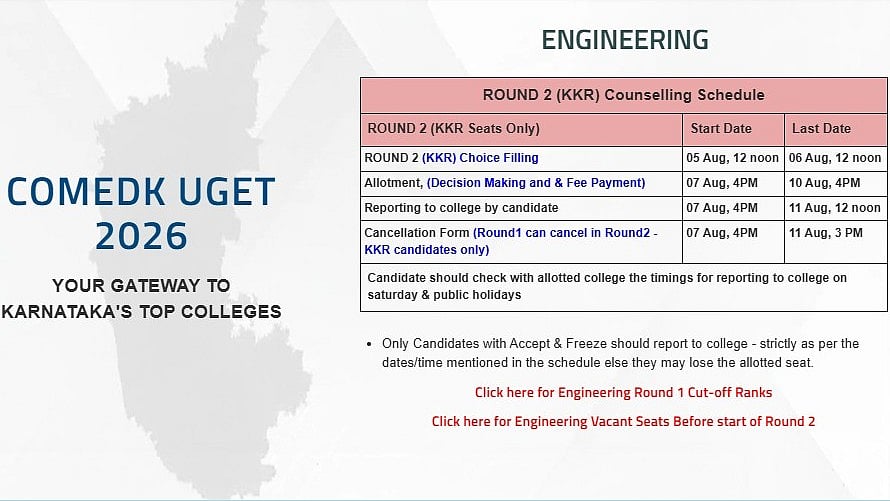
COMEDK Counselling 2026 Round 2: The Consortium of Medical, Engineering and Dental Colleges of Karnataka (COMEDK) has started the Round 2 choice-filling process for COMEDK UGET 2026 counselling. Eligible candidates can now submit their preferred colleges and courses through the official website, comedk.org, by logging in with their application sequence number and password.
Candidates belonging to the HKR/KKR categories can complete their Round 2 choice filling until 12 noon on August 6.
Applicants are advised to arrange their preferred colleges and courses in order of priority, as seat allotment will be based on the choices submitted, merit, and the availability of seats.
COMEDK Counselling 2026 Round 2: Important Dates
Choice Filling: August 5 (12:00 PM) to August 6 (12:00 PM)
Seat Allotment, Decision Making & Fee Payment: August 7 (4:00 PM) to August 10 (4:00 PM)
Reporting to Allotted College: August 7 (4:00 PM) to August 11 (12:00 Noon)
Cancellation (Round 1 candidates – KKR seats only): August 7 (4:00 PM) to August 11 (3:00 PM)
Candidates should check with their allotted college regarding reporting timings on Saturdays and public holidays.
COMEDK Counselling 2026 Round 2: Steps to Complete Choice Filling
Candidates can check the steps to complete the choice filling below:
Step 1: Go to the official website, comedk.org.
Step 2: On the homepage, click on the Engineering Login option.
Step 3: Sign in using your application sequence number and password.
Step 4: Open the choice-filling section.
Step 5: Choose whether to add preferences through the College List or the Course List.
Step 6: Switch between the college and course views using the respective buttons.
Step 7: Click Add to include your preferred college and course in the preference list.
Step 8: Verify that the selected college and course have been added to the Selected Preferences table.
Step 9: Save your preferences before logging out.